Write theHOOK.
Write a hook.
Leave a gap.
Make the next note count.
A good bassline gives the track a shape to move around. Build a phrase from notes and space, add a few meaningful accents and slides, and turn four related patterns into an arrangement you can perform.
For musicians and producers / CreakBox V2.1.0001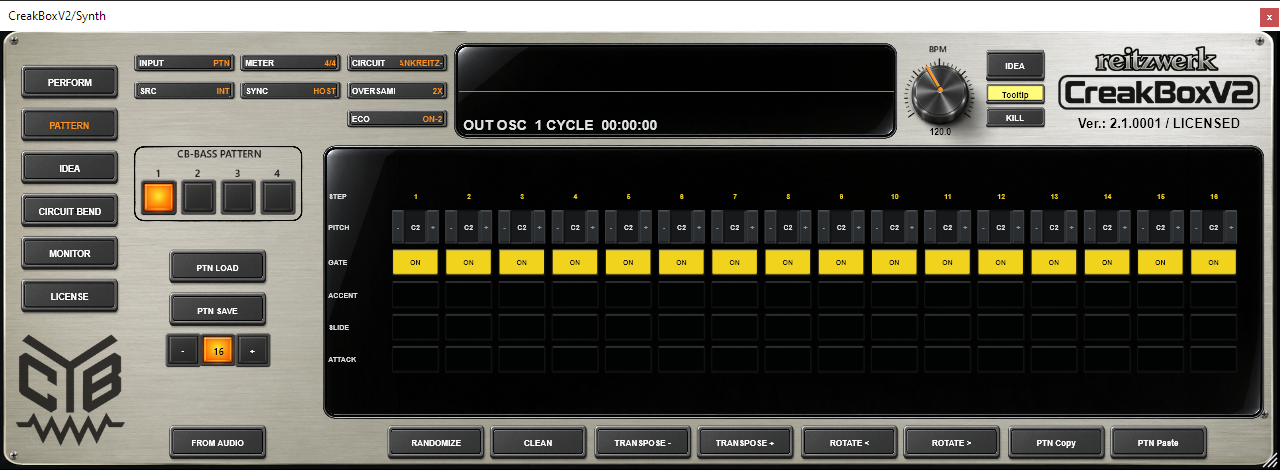
Give the loop a shape before you decorate it.
Pattern holds four independent bass patterns, P1–P4, with up to sixteen stored steps each. The slots share the current sound. Selecting P2 does not load a second synthesizer preset; it gives the same instrument another phrase to play.
Use INPUT: PTN, SRC: INT and SYNC: HOST, then run the DAW. The shared top controls are explained in the Perform manual. On this page, concentrate on where notes begin, where they leave space and which transitions need emphasis.
New instances start with plain C2 notes and every Gate on. CLEAN returns the selected slot to that material while keeping its length. It gives you a useful neutral surface, not an empty grid of rests.
Build an eight-step hook
- Choose a short loop. Select P1 and set its length to 8. With straight timing it repeats every two quarter notes, so you can hear a decision again quickly against the drums.
- Write the rhythm with Gate. Remove a few note starts before changing pitches. Let the kick and the bass take turns. Set gates first: turning a step into a rest clears its Accent, Slide and Attack flags.
- Use a small pitch vocabulary. Keep a tonic and one or two answering notes. A fifth or an octave can make a contour clear without making every step different.
- Add one point of emphasis. Accent a note that matters, then adjust the live ACCENT knob. Add a Slide only where one note should pull into the next.
- Hear the loop join. The last-to-first transition is part of the phrase. A Slide on the last step connects into the first, so judge it over several repetitions.
Work on the intended bank. With IDEA TEST or Lock Mode active, you are editing the selected idea branch. For ordinary runtime editing, leave those modes first or explicitly commit the candidate with USE IDEA.
Pitch, Gate and articulation each have a job.
| Control | How to use it musically |
|---|---|
| PITCH | Sets the note stored in that step, from C1 to C5. Click its −/+ for one semitone, Shift-click for an octave, or drag the note vertically. The note name stays stored when the step is a rest. Main TUNING can transpose the audible pitch without changing these note labels. |
| GATE | Decides whether this step starts a note or is a rest. It is a note/rest choice, not a continuously variable note-length lane. Turning Gate off keeps the pitch but clears that step’s Accent, Slide and Attack through normal pattern validation; turning it back on does not restore those flags automatically. |
| ACCENT | Marks a stronger filter/VCA articulation. It needs a sounding, non-tied step. Set the flag here and the strength with ACCENT on Perform. Accent is not simply another note pitch or a fixed velocity displayed in the grid. |
| SLIDE | Belongs to the source step: it keeps the gate relationship connected into the following eligible note and makes that destination glide. To move from step 3 into step 4, mark Slide on step 3. A rest interrupts the connection. Slide can also connect repeated pitches for a different articulation. |
| ATTACK | Marks a note to restart the separate VCF opening slew using Perform’s ATTACK time. The restart occurs on every marked occurrence, including loop repeats and marked Slide destinations. It does not fade the note’s VCA. At 0 ms the additional slew is bypassed. |
Why Gate, Decay and Slide feel different
Gate sets the sequencer’s note/rest and gate events. Normal gate duration follows the selected timing mode and circuit timing. DECAY shapes the filter envelope rather than stretching every gate. SLIDE holds a connected gate interval and changes the pitch transition. These controls cooperate, but substituting a long Decay for a connected gate will not create the same phrase.
For a plucked bass, use distinct gated notes and a tighter Decay. For a connected run, leave adjacent gates on and put Slide on the source notes. For a slow-opening filter gesture over one of those notes, add Attack at the destination and set an audible ATTACK time and ENV depth on Perform.
CreakBox names C1 as MIDI 24, C2 as MIDI 36 and C5 as MIDI 72. Your DAW may use a different octave label for those same MIDI numbers. Transposition is clamped at the supported limits, so several already-high notes can land on the same top note.
Let a few notes carry the story.
Try this as an eight-step phrase over a straight drum loop. The rests on 2 and 7 leave space; the G2 on 3 slides up into C3 on 4; the accent on A♯1 adds a darker answer. CreakBox uses sharp note names, so A♯1 is the B♭1 of C minor.
| Step | 1 | 2 | 3 | 4 | 5 | 6 | 7 | 8 |
|---|---|---|---|---|---|---|---|---|
| Pitch | C2 | C2 | G2 | C3 | C2 | A♯1 | G1 | C2 |
| Gate | ON | rest | ON | ON | ON | ON | rest | ON |
| Accent | ON | — | — | — | — | ON | — | — |
| Slide | — | — | ON | — | — | — | — | ON |
| Attack | — | — | — | ON | — | — | — | — |
Start with ATTACK at 0 ms so you can hear the notes and Slide clearly. Then raise ATTACK enough to hear the opening on step 4, keeping ENV audible. The last-step Slide returns into the first C2 at the same pitch: listen to how it changes the gate connection and the first accented note of the next cycle.
Make one variation at a time. Remove the last Slide for a firmer loop restart. Remove the high note’s Attack for a sharper arrival. Move the second accent earlier for a different push. If every note starts sounding important, remove an articulation before adding another.
A short loop can pull against a long arrangement.
| Control | How to use it musically |
|---|---|
| Length − / + | Moves the selected slot’s endpoint within 1–16 steps. Click the length readout to choose a value directly. Only the active length loops; all sixteen step records remain stored. |
| Shortening | Hides the later steps from playback without erasing them. Their notes and articulation return if you lengthen again. CLEAN and whole-pattern transpose still affect stored steps beyond the current endpoint. |
| Lengthening | Makes the previously stored later steps audible. It does not automatically repeat the first half or compose a continuation. Check those steps before the loop reaches them. |
| Straight / Triplet | METER changes subdivision for both Host and Free clocks. Straight: 4 steps per quarter, so 8 steps = 2 quarters and 16 = 4. Triplet: 3 steps per quarter, so 12 steps = 4 quarters and 16 = 5⅓. It does not rewrite the DAW’s time signature. |
| Odd lengths | A 7-, 11- or 15-step phrase can rotate its emphasis against a straight drum loop. Give it a longer DAW loop so you hear the changing relationship, and check how host loop/seek points restart or realign the pattern. |
Extend an eight-step idea to sixteen
For a composed continuation, bring the normal runtime pattern into IDEA with FROM SYNTH. Use TEST IDEA, open Pattern, select P1 and extend it from 8 to 16. Return to IDEA and DEVELOP with a low, non-zero amount for a restrained variation.
When the first eight step values must remain fixed, enable Lock Mode and lock the whole-step dot on steps 1–8 before developing. Leave 9–16 editable and the global PATTERN lock off. The full IDEA extension workflow explains the two methods and how to keep the resulting branch. P1’s local locks do not automatically lock P2–P4.
Move the phrase before you replace it.
| Tool | Musical purpose and scope |
|---|---|
| PTN Copy / PTN Paste | Copies the complete selected pattern, including all stored steps and its length, to the internal pattern buffer. Paste replaces the destination slot. Copy P1, select P2 and paste to build a sibling you can change without losing P1. This is a pattern copy, not a copy of the sound. |
| TRANSPOSE − / + | Moves all sixteen stored notes down/up one semitone. Shift-click moves an octave. Gate, accent, slide and Attack placement stay in place; notes are clamped to C1–C5. It changes the bank’s notes rather than the live TUNING offset. |
| ROTATE < / > | Shifts the active phrase one step earlier/later with wraparound at its loop length, carrying pitch and articulation together. Use it to move the same motif against the kick. Steps outside the active loop are not rotated into it. |
| CLEAN | Replaces all sixteen stored steps in the selected slot with C2, Gate on, and Accent/Slide/Attack/ties off. It preserves the current length. Copy/save first if the phrase is worth keeping. |
| RANDOMIZE | Creates a complete new phrase in the selected slot while keeping its chosen length. It is an immediate rewrite, not a subtle development of a tree branch. It does not enforce IDEA’s full Notes/Groove/Sound targets or its protection workflow; use IDEA when you want those constraints. |
RANDOMIZE, R and IDEA-DEVELOP are different tools
RANDOMIZE asks for a new whole phrase. A low DEVELOP AMOUNT is not a promise that this button makes only small changes. The R shortcut on Perform/Pattern, with Lock Mode off, instead mutates only the current slot by IDEA’s DEVELOP AMOUNT and leaves sound and other slots alone. At zero amount R does nothing. It does not create an IDEA-tree child.
IDEA-DEVELOP creates a saved child of the selected idea, applies the generation direction and respects configured locks while Lock Mode is on. It builds the four-pattern family with a shared sound. Choose it when you want a parent to compare against or exact protection for a hook.
Manual pattern tools can change material protected from IDEA generation. Pattern edits are not separate per-step DAW automation lanes, and the editor has no dedicated pattern-undo history. Use copied slots, saved banks or IDEA branches as useful comparison points; host undo behaviour depends on the DAW.
Turn variations into sections.
A useful bank might hold the main phrase in P1, a more open version in P2, a sparse breakdown in P3 and a fill in P4. Their lengths can differ. Keep some identity between them: the same opening note, an accent in the same place, or one recognizable slide gives the arrangement a thread.
The numbered buttons select the slot for editing and request it for playback. During continuous playback, an ordinary request normally waits for the current pattern boundary; the queued slot can blink while the active slot remains lit. At a valid first-step boundary the new choice can start immediately. While waiting, remember that the selected edit slot and the pattern currently sounding can be different.
Put the choices on the DAW timeline
With INPUT: PTN, send MIDI notes 24, 25, 26 or 27 to select P1, P2, P3 or P4. In CreakBox’s octave convention these are C1, C♯1, D1 and D♯1. MIDI pattern-select events are timed commands and can switch without waiting for the old phrase to wrap. Place them at your intended section starts and keep the transport running. Their note-offs do not stop the pattern.
For GUI/parameter selection, allow for its normal boundary-queue behaviour. For ordinary pitched MIDI playing, switch INPUT to MIDI instead: the same incoming notes then play the synth rather than selecting its bank slots. The Perform playing guide explains velocity accents, overlapping-note slides and last-note priority.
Pattern selection does not store a different sound per slot. Automate sound changes in the DAW when a section needs a Cutoff opening, a shorter Decay or an effect change. If you need separate instruments or simultaneous independent bass sounds, use separate plug-in instances and save them with the project.
Save the notes separately from the sound.
| Save/load route | What it is for |
|---|---|
| PTN SAVE | Saves the four-pattern CB-BASS bank to a .cbbp file, including each slot’s steps and length. It is useful for a phrase library you can try through different sounds. |
| PTN LOAD | Loads a .cbbp bank and replaces all four slots, not just the currently selected pattern. It does not load a new circuit configuration or a complete IDEA workspace. |
| DAW project / full state | Keeps the instrument as a whole: sound, patterns, quality, appearance and IDEA state. Use the host’s full project/preset facilities when the exact sound and the phrases belong together. |
| .cbcb circuit file | Stores a machine/sound configuration and its mappings/colours. It is separate from the .cbbp pattern bank. Choosing a different circuit is a sound change, not a replacement for saving your composition. |
A practical naming scheme is musical rather than technical: “Verse sparse”, “Chorus rising” or “Late-night slides”. Keep a bank before a major randomization or destructive paste. A copied pattern buffer is useful within the editing session; a saved file or project is the reusable record.
Use a recording as material, then make it your own.
FROM AUDIO opens a WAV file and looks for a monophonic bass pattern: notes, rests/mutes, slides, accents and loop length. It is a transcription aid, so start with a tightly trimmed, isolated phrase of up to sixteen steps. A mixed track, long reverberant tail or heavy distortion can obscure where a note starts and which pitch is fundamental.
- Choose the destination first. Select the slot you want to replace, then choose FROM AUDIO or press L on Pattern. The reader analyzes up to the first eight seconds of the file; a short, clean phrase makes the intended loop easier to identify.
- Review the pattern proposal. Audio is paused for analysis. The initial pattern stage has a bounded search and reports its result before applying it. YES loads the proposed notes/articulation and length into the chosen slot; the other three slots are retained. NO keeps the pattern unchanged.
- Choose sound analysis separately. A second question offers a longer search for approximate waveform, filter/knob and distortion settings. It has no fixed time limit and shows elapsed time. You can skip it and keep the current sound, even after accepting the notes.
- Review before applying the tone. The estimated settings are a proposal, not an exact reconstruction of every recording chain. Accept them only if they help. Cancel/Escape stops the search and leaves the sound unchanged; a pattern already accepted remains loaded.
Listen to the result in CreakBox and correct it by ear. Check the downbeat, the active length, repeated-pitch notes and any rests near slides. Treat the optional tone fit as a starting point for Perform, especially when the source contains processing outside the instrument.
FROM AUDIO reads an external recording into a pattern. FROM SYNTH on IDEA captures the CreakBox runtime pattern and sound into an idea. SRC: EXT on Perform processes incoming audio live. These are three different workflows.
Protect a note, a rhythm or the entire phrase.
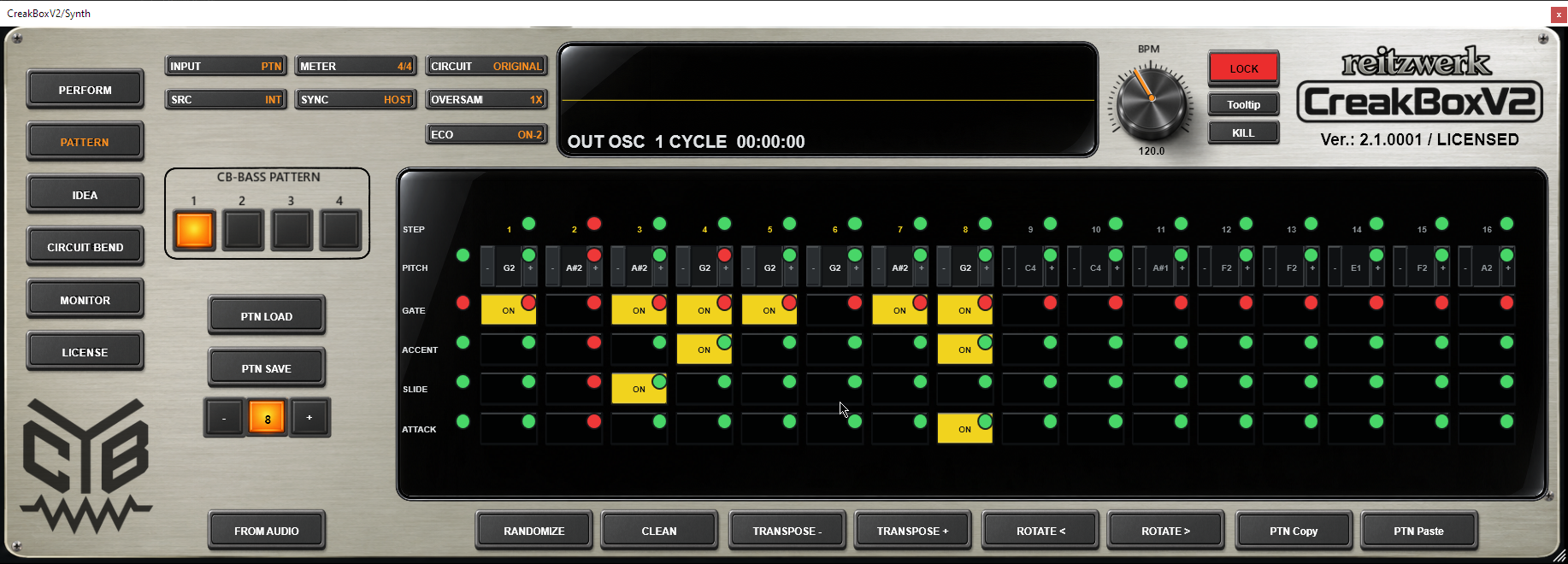
IDEA’s Lock Mode exposes small dots on the pattern grid. They configure protection for NEW IDEA and DEVELOP while Lock Mode is on; the normal cells remain editable outside those dots. Red means explicitly locked, green means individually unlocked. A global lock can still protect a green individual setting.
| Scope | Musical use |
|---|---|
| One cell | Preserve one note pitch or one Gate/Accent/Slide/Attack value in the selected pattern. |
| Whole step | Use its step-number dot to group pitch, gate and articulation protection. This is the useful choice for keeping steps 1–8 while a new second half develops. |
| Whole lane | Use the dot beside PITCH, GATE, ACCENT, SLIDE or ATTACK to group that row across the sixteen stored steps of this slot. Lock Gate to keep a rhythm while notes change. |
| All four patterns | Use the global PATTERN lock on IDEA when you want to keep the full bank and explore sound/effects instead. |
Local locks belong to their particular slot. Locking P1’s first eight steps does not also lock P2–P4. Turning Lock Mode off preserves the configured locks but disables their protection for generation. A favourite mark in the IDEA tree serves a different purpose: keeping a candidate in your shortlist.
For a protected development workflow, use FROM SYNTH → LOCK → DEVELOP → TEST → USE. While testing across Pattern and Perform, edits belong to the selected idea branch. Confirm USE IDEA to make its bank and sound the normal runtime.
Shortcuts that save a listening pass.
| Key or gesture | Action |
|---|---|
| 1–4 | Select P1–P4. Top-row digits and numpad digits are supported when the host delivers them. GUI-style playback requests follow normal boundary selection. |
| Pitch −/+ / Shift-click | One semitone per click, or one octave with Shift. Drag the note vertically for a fast register adjustment. |
| Shift + TRANSPOSE −/+ | Transposes the whole stored pattern by an octave rather than a semitone, with C1–C5 limits. |
| R | Develops only the selected runtime/current pattern using DEVELOP AMOUNT when Lock Mode is OFF. No new IDEA child is created. Zero amount does nothing; Lock Mode ON disables this shortcut action. |
| I | Opens IDEA and generates a new root. Use FROM SYNTH instead when you intend to capture and develop the phrase already playing. |
| L | Opens the WAV FROM AUDIO workflow on Pattern. This is not PTN LOAD; PTN LOAD reads a .cbbp bank. |
| Space | Starts/stops CreakBox’s FREE clock. With HOST sync, Space is left for the DAW’s transport handling. |
The editor must receive the keys. Text entry and modal dialogs keep their own input. Use the visible controls if your DAW captures a shortcut for its own command.
A few pattern problems you can solve by listening
The next slot has not started: a normal GUI request may be waiting for the boundary; watch the steady and blinking pattern lamps. The grid changes but the bass does not: check INPUT is PTN, not ordinary MIDI input, and that you are hearing the selected/editable slot rather than a still-playing earlier request.
A Slide does nothing: mark the source step, keep the next step sounding and check the loop endpoint. Attack does nothing: add the flag, use a non-zero ATTACK time and listen with ENV modulation. Accent vanished after a rest: Gate-off validation clears Accent/Slide/Attack on that step; set its Gate first, then replace the articulation.
The new half sounds unexpected: lengthening revealed stored later steps. Edit them or use the IDEA extension workflow. A transformation damaged an old tied phrase: imported legacy ties can be materialized as ordinary visible gate steps by manual transformations. For current programming, use the Gate and Slide relationship deliberately rather than expecting a separate Tie button.
The old bank returns when leaving IDEA: the candidate was still an audition. Use TEST/Lock to keep editing it across pages, then USE IDEA to commit. The export is silent: check free-edition FLT2–FLT4 render restrictions described in the Perform quality section.